
Smart Home – Philips Hue (AWS Managed Integration)

Smart Home — Philips Hue (AWS Managed Integration)

Control your Philips Hue smart lights straight from the /IOTCONNECT™ dashboard — or with your voice through an Amazon Echo. Using AWS IoT Managed Integrations, the platform connects to your Hue account and lets you turn bulbs on and off, change their brightness, and set their color — by a click in the portal or a simple spoken command.

What is this Integration?

Philips Hue is a popular smart-lighting system: smart bulbs talk to a small Hue Bridge in your home, and the bridge connects to the cloud. This integration lets /IOTCONNECT™ send commands to those bulbs through AWS IoT Managed Integrations — Amazon’s service for controlling smart-home devices from different brands in a standard way.

The big advantage: you manage your Hue lights in the same portal you already use for your IoT devices, alongside everything else. From the dashboard you can:

Turn a bulb on or off

Change its brightness (dim or brighten)

Change its color

Under the hood, these controls use the Matter smart-home standard, so the same approach works across supported smart-home brands — not just Hue.
How It Works

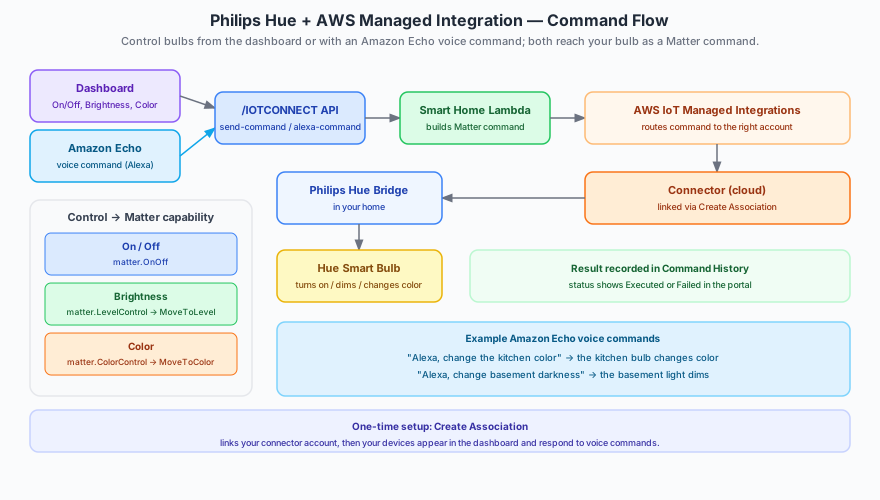
Philips Hue AWS Managed Integration Flow

When you press a control in the dashboard, your click travels through a short, well-defined path and ends at the bulb:

1. Dashboard: You click On/Off, move the brightness slider, or pick a color.

2. /IOTCONNECT™ platform: The portal sends your request to the Managed Integration service.

3. Smart Home service: /IOTCONNECT™ translates your click into a standard Matter command.

4. AWS IoT Managed Integrations: AWS routes the command to the correct linked account (your connector).

5. Connector & Hue Bridge: The command reaches the Hue Bridge in your home.

6. Bulb responds: Your bulb turns on, dims, or changes color — and the result (Executed or Failed) is recorded in Command History.

One-Time Setup: Connect Your Account

Before you can control any lights, you link your smart-home account to /IOTCONNECT™ once. This is called creating an association.

Step 1 — Open Managed Integration in the portal and choose your connector.

Step 2 — Create Association to securely link your smart-home account. This connects /IOTCONNECT™ to your Hue account through AWS.

Step 3 — Discover devices. After linking, the platform finds the bulbs on your account and activates them so they can receive commands.

Step 4 — See your lights appear in the dashboard device list, ready to control.

You only do this once per account. After that, your lights stay available in the dashboard.

Sending Commands from the Dashboard

Once your lights appear in the dashboard, controlling them is simple. Open the device list, pick the bulb you want, and use the controls below.

Turn the bulb On or Off

Click the On or Off toggle for the bulb.

/IOTCONNECT™ sends an On/Off command (Matter OnOff capability) and the bulb switches instantly.

Change the Brightness

Move the Brightness slider to the level you want (dimmer or brighter).

The portal sends a Brightness command (Matter LevelControl → Move To Level) carrying your chosen level, and the bulb fades to it.

Change the Color

Pick a color from the color picker.

The portal sends a Color command (Matter ColorControl → Move To Color) with the color’s coordinates, and the bulb changes color smoothly.

Every command you send is logged in Command History, where you can confirm whether it was Executed or Failed.

Voice Control with Amazon Echo

You don’t always need the dashboard — your lights also respond to Amazon Echo voice commands through Alexa. Just speak, and the matching bulb reacts.

Examples:

“Alexa, change the kitchen color” — the kitchen bulb changes its color.

“Alexa, change basement darkness” — the basement light dims.

How it works: When you speak to your Echo, Alexa sends the request to /IOTCONNECT™. The platform matches the spoken room name (such as “kitchen” or “basement”) to the right bulb, then sends the same kind of Matter command the dashboard uses — On/Off, Brightness, or Color — through AWS Managed Integrations to that bulb. The result is logged in Command History just like a dashboard command.

So whether you click in the portal or speak to your Echo, the command travels the same path and ends at the correct light.

Command Reference

For reference, here is how each dashboard control maps to the underlying Matter capability that AWS Managed Integrations understands:

On / Off → OnOff capability. Turns the bulb on or off.

Brightness → LevelControl capability, Move To Level action. Carries the brightness level you selected.

Color → ColorControl capability, Move To Color action. Carries the color coordinates (X and Y) and a smooth transition time.

You don’t need to work with these details directly — the dashboard builds the right command for you. They are shown here so you understand what travels to the bulb.

ⓘ NOTE

You must Create Association (link your smart-home account) once before any lights appear in the dashboard or respond to voice. Commands — whether from the dashboard or an Amazon Echo — are delivered through AWS IoT Managed Integrations using the Matter standard, and each result is saved in Command History as Executed or Failed. The same On/Off, Brightness, and Color controls work for any supported Matter smart-home device, not only Philips Hue.