
Rule Engine

Rule Engine

The /IOTCONNECT™ Rule Engine lets you set conditions on incoming device telemetry and trigger automated actions when those conditions are met. Define threshold-based rules that evaluate in real time against every incoming message, enabling instant responses to critical device states without manual intervention.

What is the Rule Engine
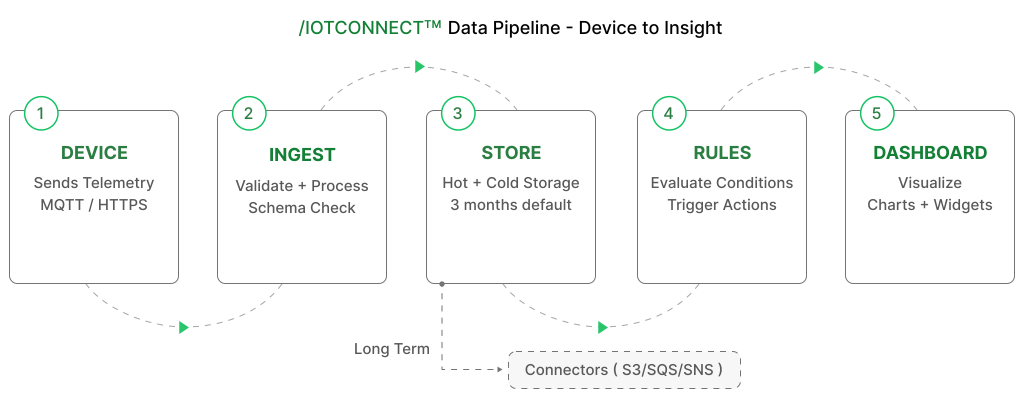
The /IOTCONNECT™ Rule Engine is a real-time condition evaluation system that monitors incoming device telemetry and triggers automated actions when specified conditions are met.

Rules are defined per device template and evaluate against every incoming telemetry message. When a device reports a value that matches a rule condition (for example, temperature exceeds 80°C or battery level drops below 10%), the rule engine immediately executes the configured action — sending an alert, triggering a webhook, executing a device command, or notifying operators.

This enables proactive IoT management where critical conditions are detected and responded to automatically, reducing response time from minutes to milliseconds and eliminating the need for constant manual monitoring.

Rule types and actions

When a rule condition is triggered, /IOTCONNECT™ can execute one or more of the following action types:

Email Notification: Send an email alert to configured recipients with rule details, device information, and the triggering telemetry value. Supports custom email templates with dynamic placeholders for device name, attribute value, and timestamp.

Push Notification: Deliver instant push notifications to mobile devices via the /IOTCONNECT™ mobile app. Operators receive immediate alerts on their phones for critical conditions requiring urgent attention.

Webhook: Send an HTTP POST request to an external URL with the rule event payload. Integrate with third-party systems, ticketing platforms, ITSM tools, or custom applications for automated incident workflows.

Device Command: Automatically send a cloud-to-device command when a condition is met. Use this to trigger corrective actions directly on the device, such as shutting down a motor when temperature exceeds safe limits or activating a valve when pressure is too high.

UI Alert: Display a visual alert in the /IOTCONNECT™ portal dashboard. Alerts appear in the notification center and on device detail pages, providing visibility to all portal users monitoring the fleet.

Quick Start

Follow these steps to create your first rule in /IOTCONNECT™:

Step 1: Navigate to Devices > Rules — Open the /IOTCONNECT™ portal and go to the Rules section under Devices. This page lists all existing rules and allows you to create new ones.

Step 2: Click Create Rule — Click the Create Rule button to open the rule creation wizard. You will define the condition, severity, and actions for your new rule.

Step 3: Select Template and Attribute — Choose the device template this rule applies to, then select the specific attribute (sensor field) to monitor. Only numeric and boolean attributes support condition evaluation.

Step 4: Define Condition — Set the comparison operator and threshold value. Available operators include: Greater Than, Less Than, Equals, Not Equals, Between (range), and Not Between. For Between conditions, specify both minimum and maximum values.

Step 5: Set Severity Level — Assign a severity to the rule: Information, Warning, Critical, or Major. Severity determines the visual priority of alerts and can be used to filter and route notifications.

Step 6: Choose Action Type — Select one or more actions to execute when the rule triggers: Email, Push Notification, Webhook, Device Command, or UI Alert. Configure the action details (recipients, URLs, command payloads).

Step 7: Save and Activate — Save the rule and ensure it is set to Active status. The rule begins evaluating immediately against incoming telemetry from all devices using the selected template.

Video Walkthrough: Template Association with Rule

Watch the complete walkthrough video showing the end-to-end process of associating a device template with a rule and configuring rule-based device management with the IoTConnect platform.

Rule conditions

The Rule Engine supports flexible condition definitions using comparison operators and logical combinators:

Comparison Operators:

• Greater Than (>) — Triggers when the attribute value exceeds the threshold.
• Less Than (<) — Triggers when the attribute value falls below the threshold.
• Equals (=) — Triggers when the attribute value exactly matches the threshold.
• Not Equals (!=) — Triggers when the attribute value differs from the threshold.
• Between — Triggers when the value falls within a specified range (inclusive).
• Not Between — Triggers when the value falls outside a specified range.

Multiple Conditions:

Rules can combine multiple conditions using logical operators:
• AND — All conditions must be true for the rule to trigger. Use AND when you need multiple sensor readings to simultaneously indicate a problem (e.g., temperature > 80 AND humidity > 90).
• OR — Any single condition being true triggers the rule. Use OR when any one of several conditions independently indicates an issue (e.g., battery < 5 OR signal_strength < -90).

ⓘ NOTE

Rules evaluate on every incoming telemetry message for devices matching the rule template. Keep conditions simple and focused for best performance. Complex rules with many AND / OR conditions increase evaluation time. For high-frequency devices sending data every second, prefer single-condition rules to minimize processing overhead.