
AI Model

AI Model

/IOTCONNECT™ AI Model enables you to deploy machine learning models to edge devices for local inference. Manage models centrally and push them to devices for real-time on-device AI processing without cloud round-trips.

Overview

AI Model in /IOTCONNECT™ allows you to manage and deploy machine learning models to edge devices for local inference. The platform provides a centralized Model Library managed by administrators and visible to all companies on the platform.

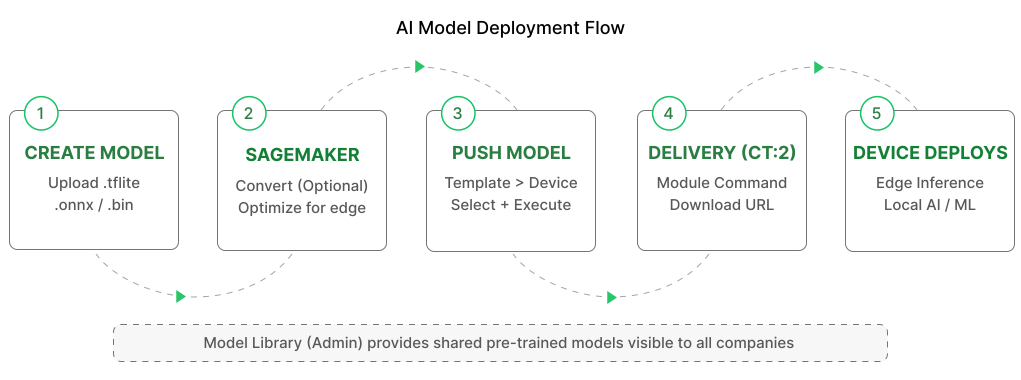
Creating a Model: Create models by specifying a Name, Code, Version, Model Type, and Variant, then upload the model file. The platform supports common ML model formats including .bin, .tflite, and .onnx files. An optional integration with AWS SageMaker allows you to convert models through the SageMaker pipeline before deployment.

Model sections:

My Model: Models created by your company. These are private to your organization and can be managed, versioned, and deployed to your devices.

Model Library: Shared models managed by platform administrators. These pre-trained models are visible to all companies and can be imported into your account for deployment.

Quick Start

Follow these steps to create and deploy an AI model to your devices in /IOTCONNECT™:

Step 1: Navigate to AI Models in Left Menu — Open the AI Models section from the left navigation menu.

Step 2: Click Create Model — Click the Create Model button to start defining a new model.

Step 3: Fill Model Details — Enter Name, Code, Version, Model Type (AI Model), and Variant for your model.

Step 4: Upload Model File — Upload your model file in a supported format (.bin, .tflite, or .onnx).

Step 5: Optionally Convert Through SageMaker — Check the “Convert through SageMaker” option if your model requires conversion before deployment.

Step 6: Save Model — Save the model entry. It is now available for deployment.

Step 7: Go to Push Model — Navigate to the Push Model section to deploy models to devices.

Step 8: Select Template and Target Device — Choose the device template and select the specific device to receive the model.

Step 9: Select Model to Push — Choose the model you want to deploy from your available models.

Step 10: Execute — Click Execute to push the model. The platform delivers the model to the device via a module command (ct:2) with download URL.

Model Library

The Model Library is a collection of shared models managed by platform administrators and visible to all companies on /IOTCONNECT™. It provides access to pre-trained models that can be imported and deployed without building from scratch.

Browse available pre-trained models in the library, review their specifications and compatibility, and import them into your account for deployment to your edge devices.

Push Model

Push Model allows you to deploy AI models directly to edge devices. Select a template, then choose the target device, and finally select the model to push.

The platform sends the model to the device as a module command (ct:2) with a download URL. The device downloads the model file and deploys it locally for edge inference. This uses the same delivery mechanism as OTA firmware updates.

Select Template: Choose the device template to filter compatible devices.

Select Device: Pick the specific device that will receive the model.

Select Model: Choose which model to deploy from your available models or imported library models.

Execute: Push the model to the device. The device downloads and deploys it for local inference.

Video Walkthrough: Model

Watch the complete walkthrough video showing the end-to-end process of creating and configuring a Model, managing its settings, and validating the configuration using the IoTConnect platform.

Model Push JSON

The device receives this JSON when a model is pushed. Same structure as Module Command (ct:2).

ⓘ NOTE

Model Library is managed by platform administrators. Models pushed to devices use the same delivery mechanism as OTA (module command ct:2). Device must acknowledge successful model deployment.